Graylog
Installation and configuration guide for Graylog server.
Definition
Graylog is a powerful log management and analysis platform. It receives logs from various sources, stores them, enriches them, and provides a powerful UI to search and analyze these logs in real-time. It integrates with OpenSearch for indexing and MongoDB as its metadata database. For more details, visit Graylog Documentation.
Installation
The official installation guide is available here, but the following are the exact steps used with small adjustments.
Note:
If somthing not clear return to the official site here, and let me know in the comment section.
Step 1: Installing System Dependencies
sudo apt update
sudo apt install apt-transport-https openjdk-11-jre-headless uuid-runtime pwgen dirmngr gnupg wget
Step 2: Installing MongoDB (Graylog’s Database Backend)
sudo apt-get install gnupg curl

curl -fsSL https://www.mongodb.org/static/pgp/server-7.0.asc | \
 sudo gpg -o /usr/share/keyrings/mongodb-server-7.0.gpg \
 --dearmor

echo "deb [ arch=amd64,arm64 signed-by=/usr/share/keyrings/mongodb-server-7.0.gpg ] https://repo.mongodb.org/apt/ubuntu jammy/mongodb-org/7.0 multiverse" | sudo tee /etc/apt/sources.list.d/mongodb-org-7.0.list

sudo apt-get update
sudo apt-get install -y mongodb-org
sudo apt-mark hold mongodb-org

sudo systemctl daemon-reload
sudo systemctl enable mongod.service
sudo systemctl start mongod.service
Step 3: Installing Graylog Server
wget https://packages.graylog2.org/repo/packages/graylog-6.2-repository_latest.deb
sudo dpkg -i graylog-6.2-repository_latest.deb
sudo apt-get update
sudo apt-get install graylog-server
Step 4: Configuring Administrator Access
Create SHA256 password hash:
echo -n "Enter Password: " && head -1 </dev/stdin | tr -d '\n' | sha256sum | cut -d" " -f1
Save the hash output for next step.
Step 5: Core Configuration
Edit Graylog configuration file:
sudo nano /etc/graylog/server/server.conf
Set these parameters:
root_password_sha2 = [YOUR_HASH_FROM_STEP_4]password_secret = [RANDOM_STRING]http_bind_address = bonsaii.local:9000elasticsearch_hosts = https://user:pass@bonsaii.local:9200
Replace user:pass with real OpenSearch credentials.
Step 6: SSL Certificate Integration
Set Up Java Trust Store
mkdir /etc/graylog/server/certs
cp -a /usr/lib/jvm/java-11-openjdk-amd64/lib/security/cacerts /etc/graylog/server/certs/cacerts
keytool -importcert -keystore /etc/graylog/server/certs/cacerts -storepass changeit -alias root_ca -file <path/to/ca-certif/root-ca.crf>
Adjust the Java path if necessary.
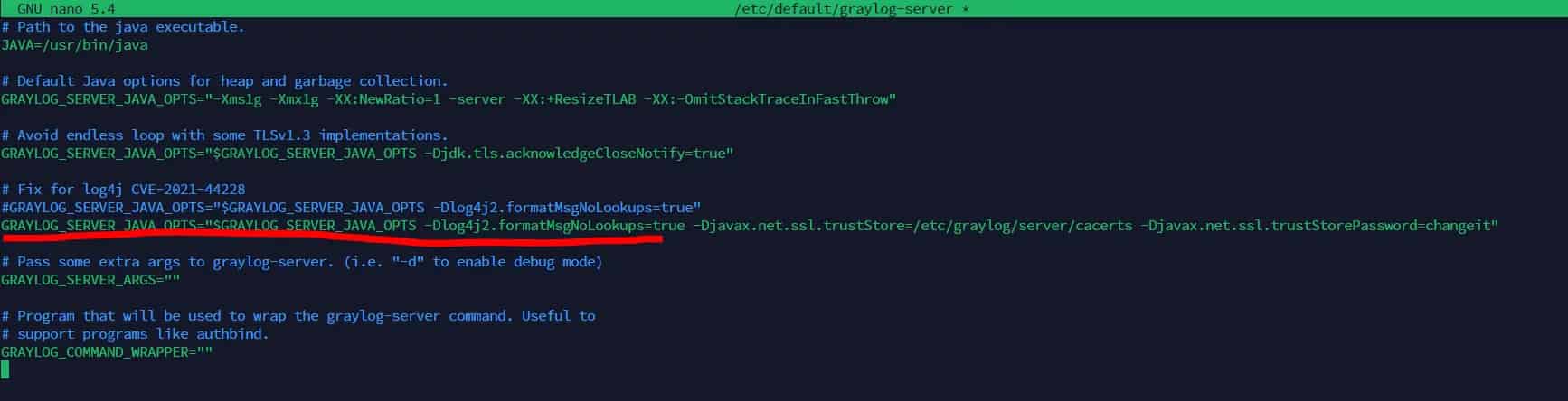
Edit Graylog Server Defaults
nano /etc/default/graylog-server
Add the line:
GRAYLOG_SERVER_JAVA_OPTS="$GRAYLOG_SERVER_JAVA_OPTS -Dlog4j2.formatMsgNoLookups=true -Djavax.net.ssl.trustStore=/etc/graylog/server/certs/cacerts -Djavax.net.ssl.trustStorePassword=changeit"
To delete a certificate alias later:
sudo keytool -delete -alias <alias> -keystore /etc/graylog/server/certs/cacerts -storepass changeit
Step 7: Start Graylog Services
sudo systemctl daemon-reload
sudo systemctl enable graylog-server.service
sudo systemctl start graylog-server.service
Troubleshooting
Graylog Won’t Start
sudo journalctl -u graylog-server -f
Certificate Issues
ls -la /etc/graylog/server/certs/
OpenSearch Connection
curl -k https://bonsaii.local:9200
MongoDB Check
sudo systemctl status mongod
Input Configuration
We will now access the Graylog Web Interface to configure the input.
Make sure you have:
- The Graylog server's IP address
- The admin password you previously configured
Step-by-Step Input Setup
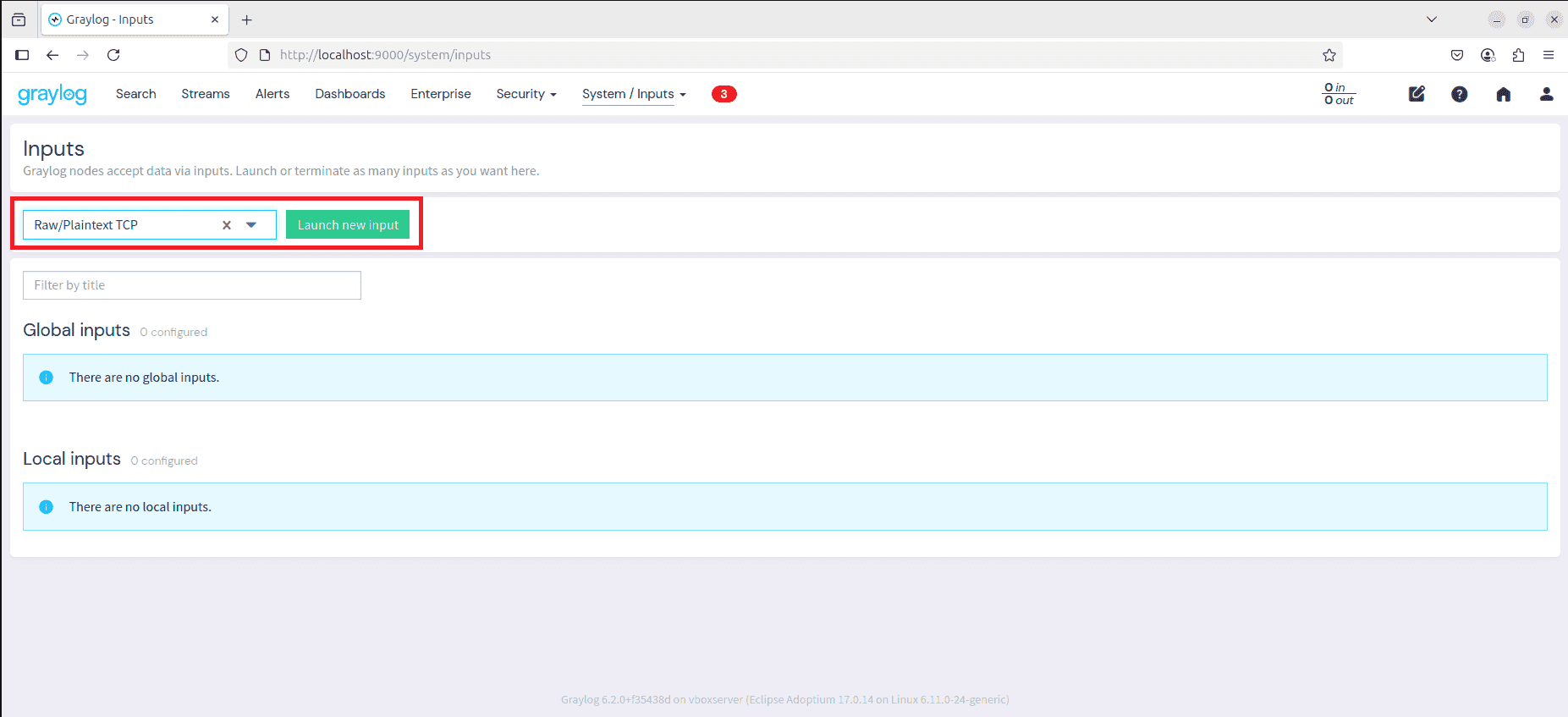
- Navigate to
System > Inputs
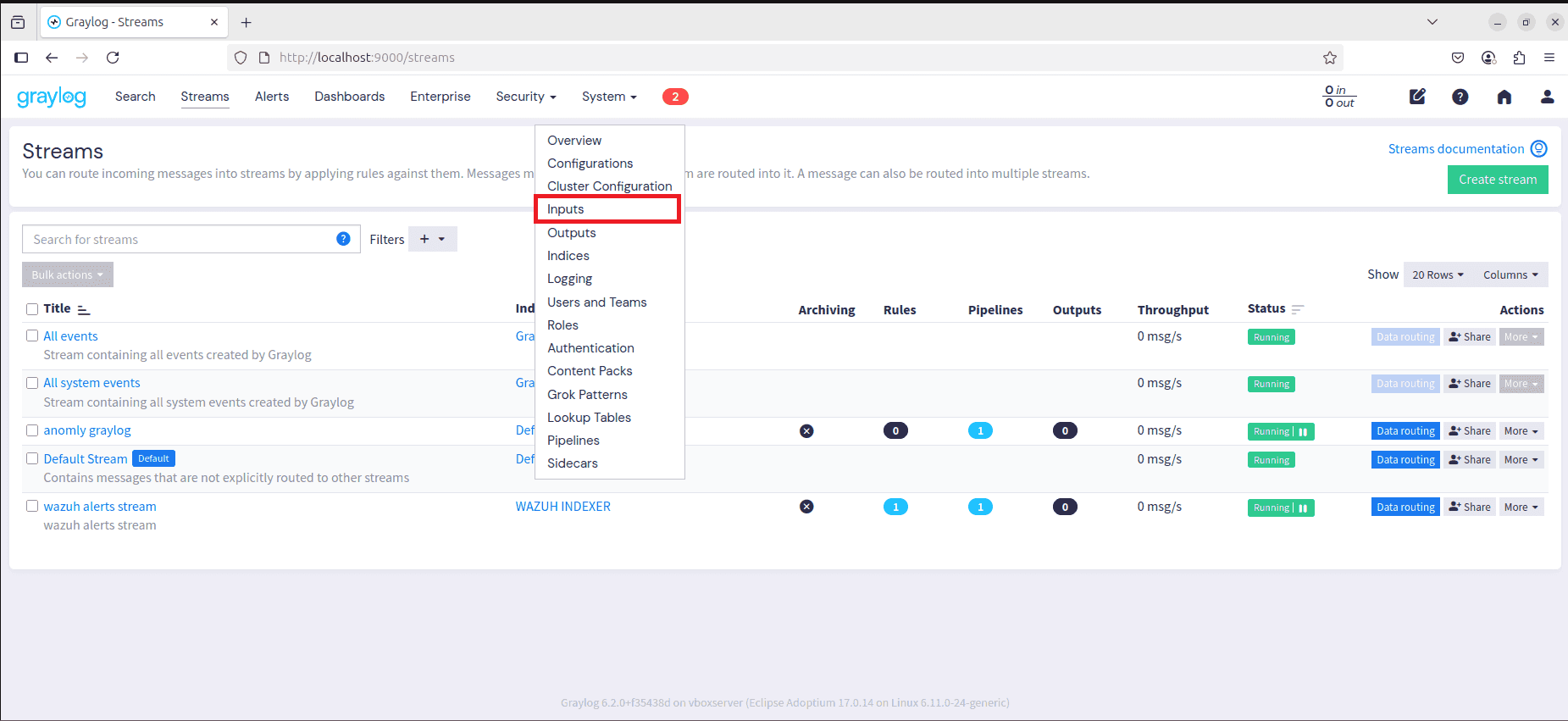
- From the dropdown, select Raw/Plaintext TCP
- Configure the input with the following fields:
- Title: A custom name for the input
- Bind address: The IP address Graylog will listen on (usually
0.0.0.0or your server's IP) - Port number: The port on which Graylog will receive logs
- TLS/Authentication: Optional based on your setup
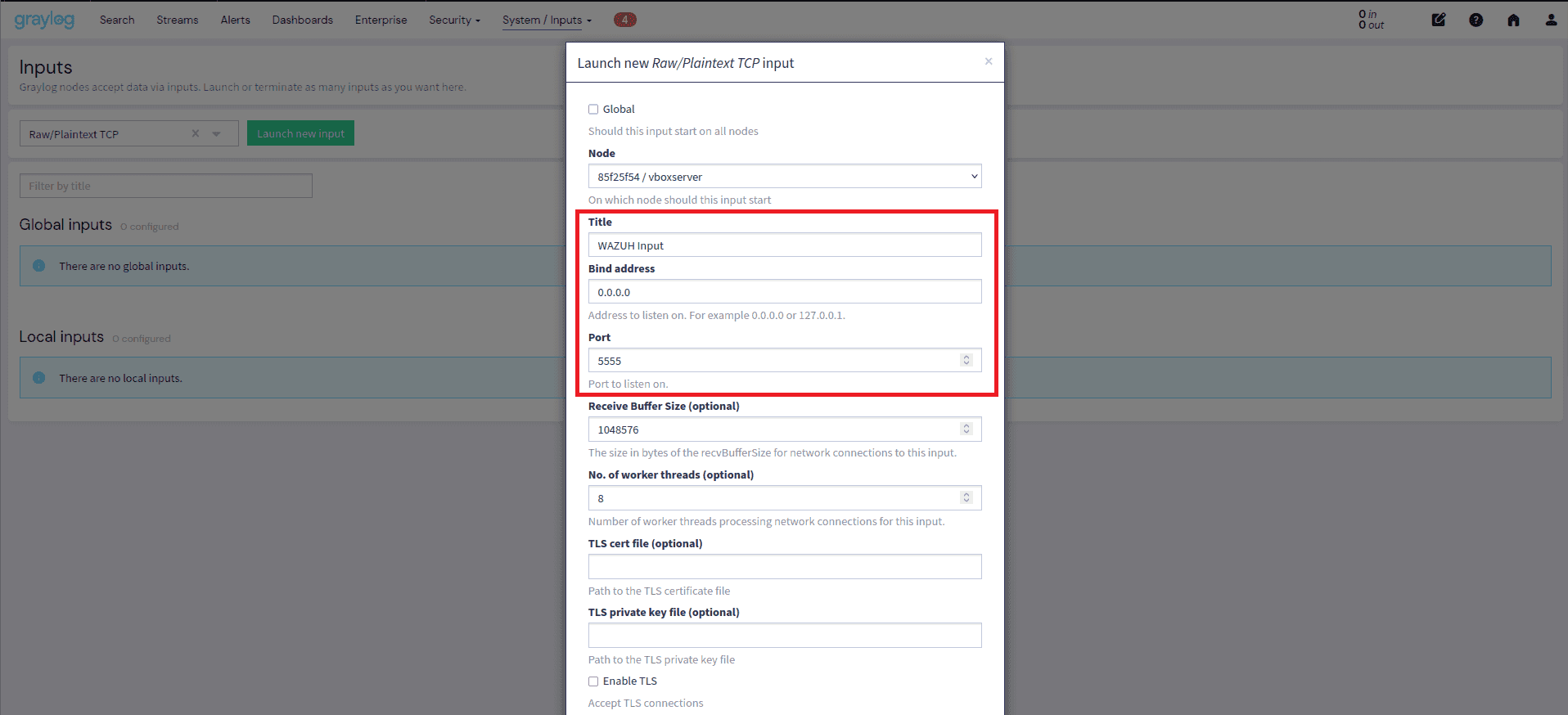
- Click Launch Input
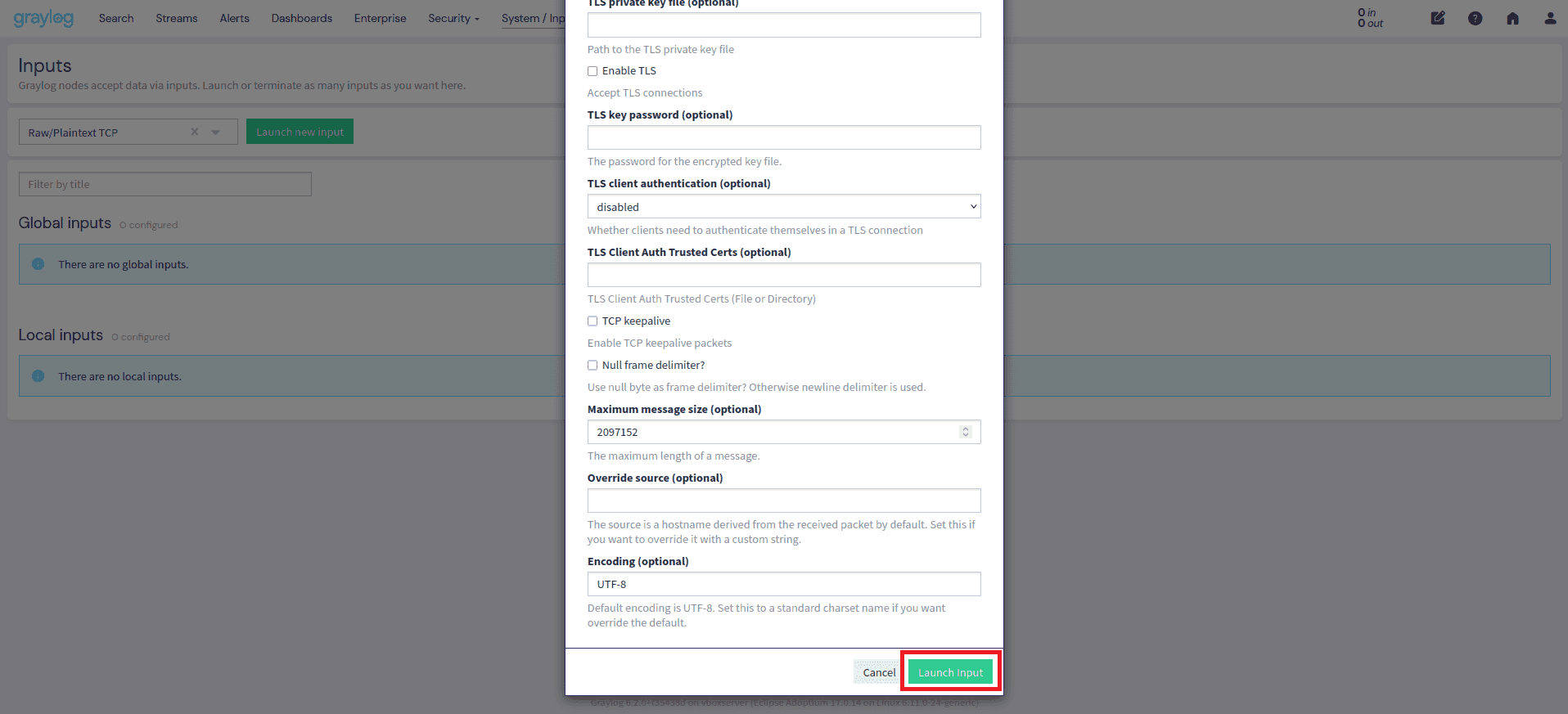
After Launching the Input
Once the input is running, it's ready to receive logs. However, to organize and persist the incoming logs properly, you need to configure a Stream and Index Set.
Note:
Inputs simply listen on a port and collect raw data.
A Stream defines how logs are routed, and an Index defines where those logs are stored.
Graylog will automatically create rotated indices like:
wazuh-alerts_0,wazuh-alerts_1, etc.
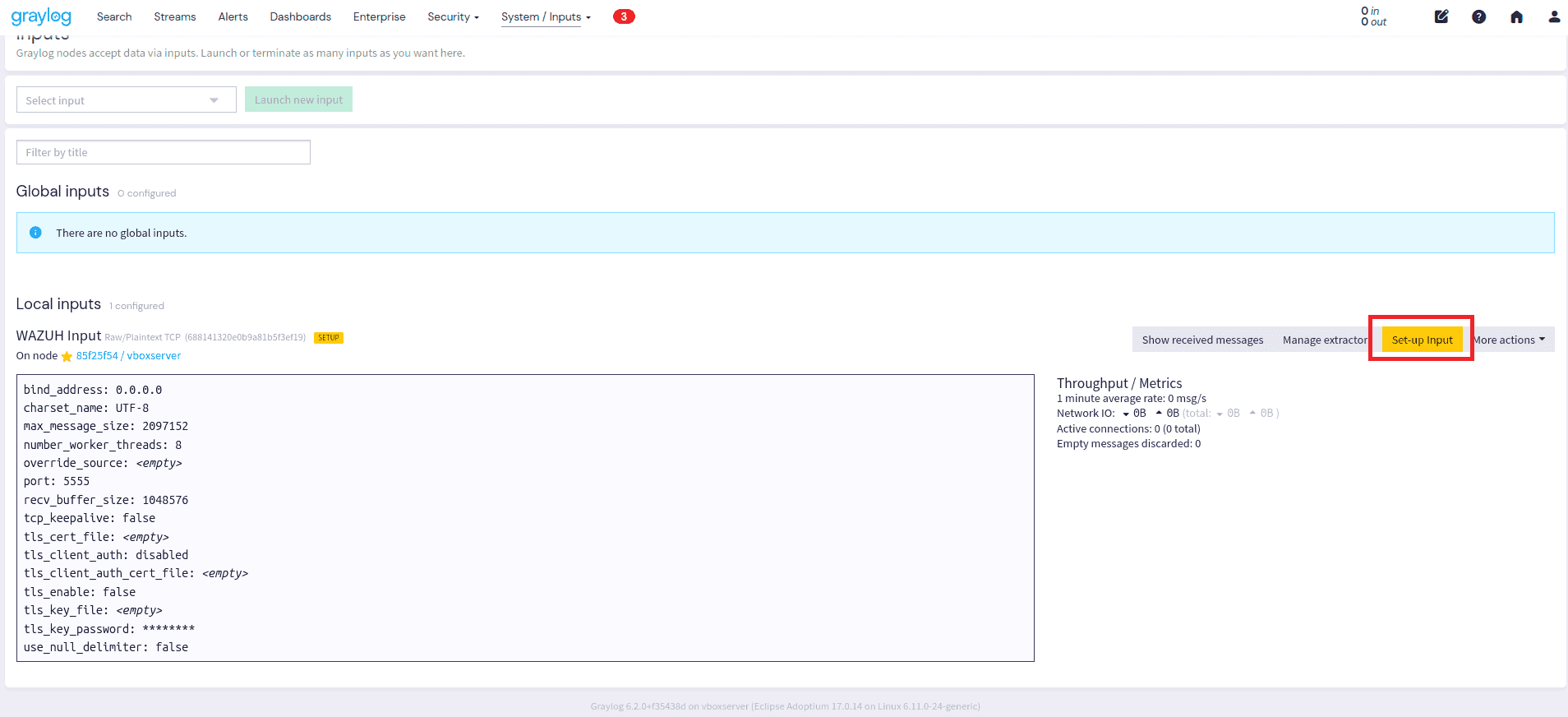
Creating a Stream
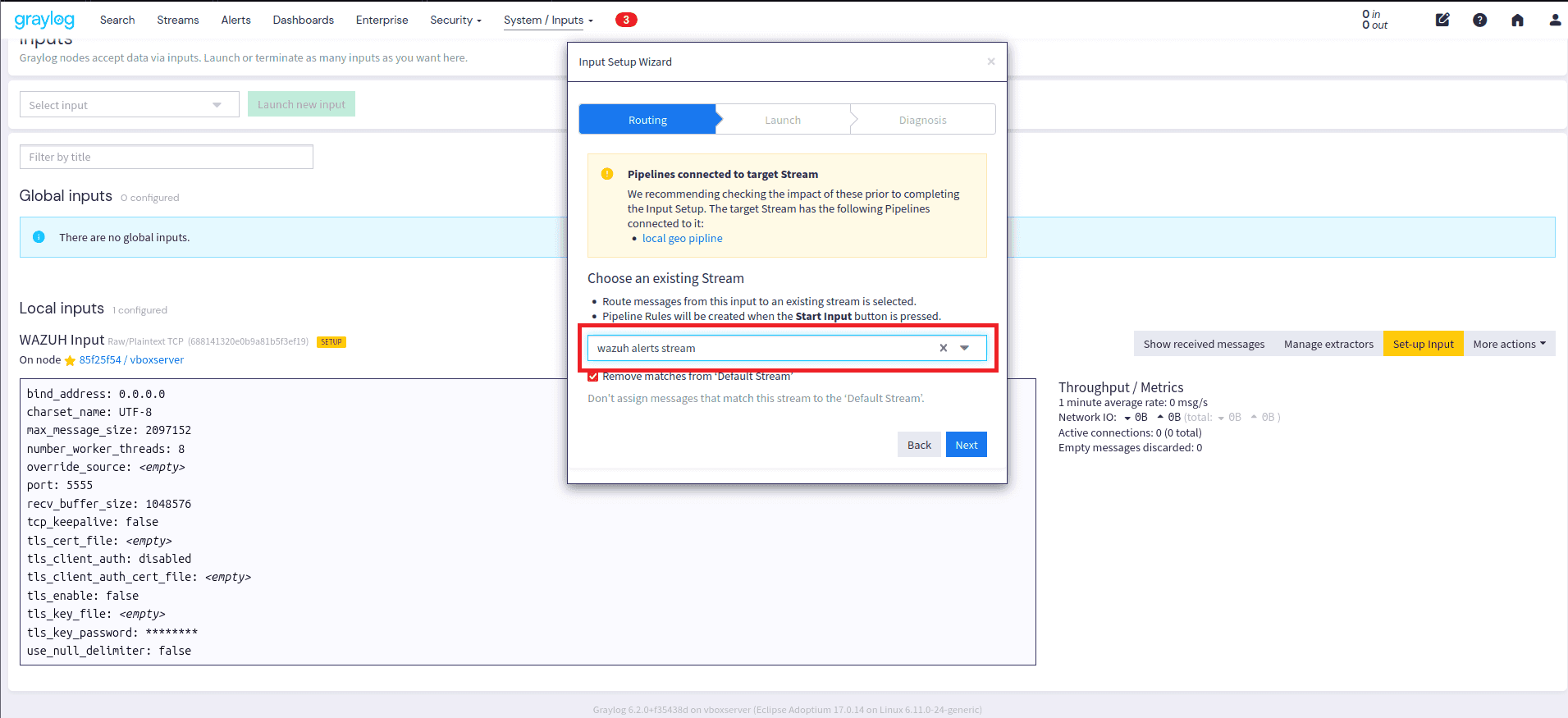
- Click Launch Stream after input creation
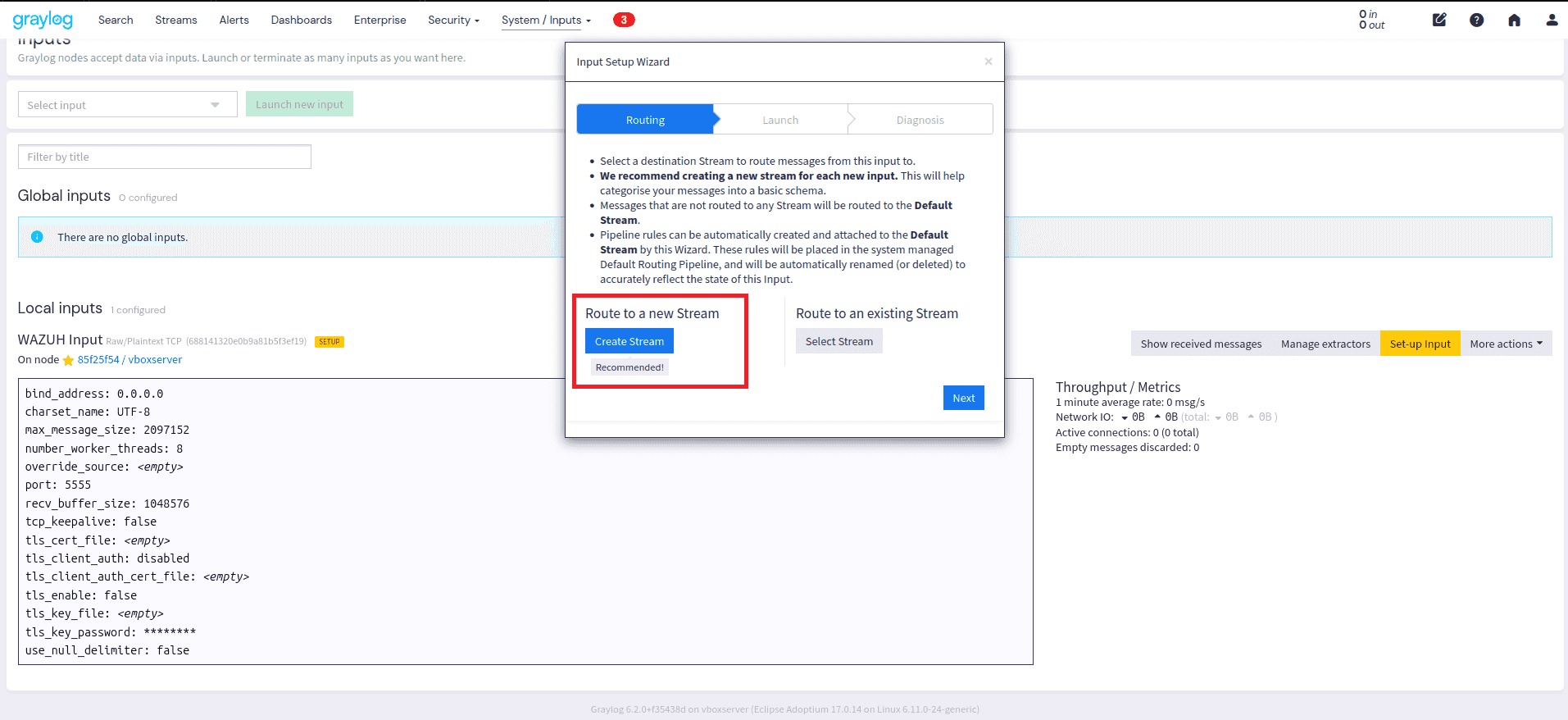
- Choose the stream and enable the option:
✅ Remove matches from 'Default stream'
Note:
There's another method for routing logs:
- You first create a stream
- When creating the input, add a static field like
input: wazuh- Then configure a Pipeline Rule to match that field and forward logs to the stream
However, using the method above (via the input interface), the stream is auto-linked using the input ID.
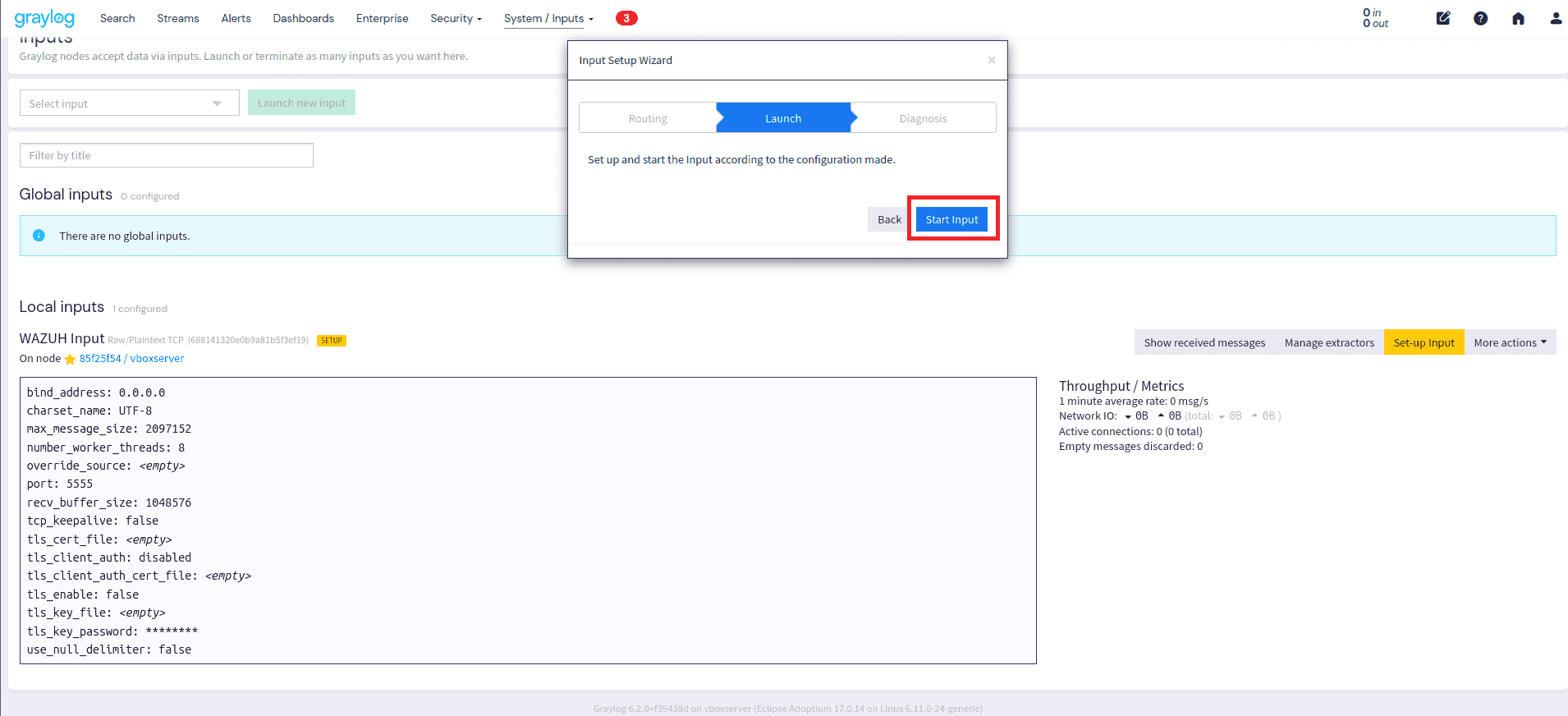
Final Step: Start the Input
Click Start Input to activate it and begin receiving logs from your Wazuh manager or any other source.